


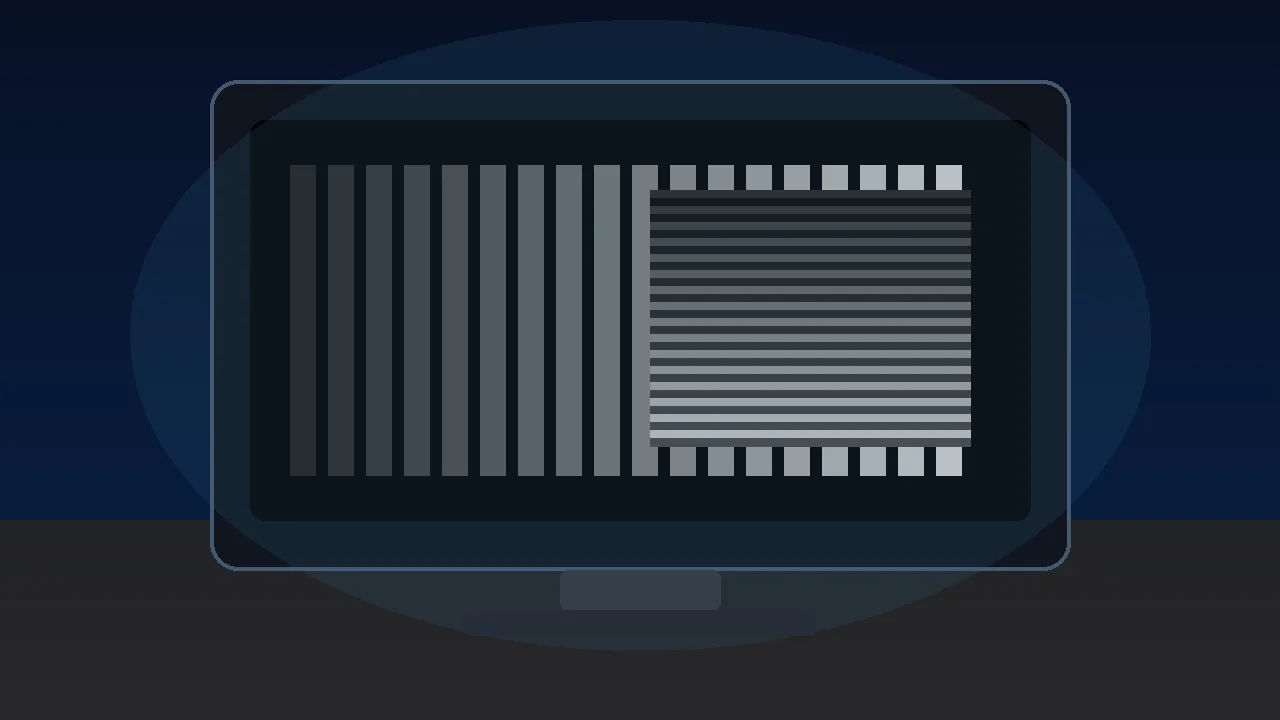
Adjust the slider until stripes blend with solid gray. The slider value is your gamma.
Step back from the screen 4-6 feet, squint slightly, and adjust the slider until the striped left side blends with the solid gray right side. The slider value when they match is your monitor gamma.
Target: gamma 2.2 (sRGB standard)
Was this tool helpful?Rate Monitor Gamma Test:3.0(2 ratings)Thanks for rating!
Add this free, no-signup tool to your own page or blog post in one click — just keep the small credit link.
Monitor Gamma Test is a free, browser-based monitor gamma test using stripe-blend pattern.
Cost: Free, no signup
Install: None — runs in the browser
Privacy: Runs locally, no uploads
Platforms: Windows, macOS, Linux, Android, iOS
Time: Under a minute
What Is a Monitor Gamma Test?
A monitor gamma test measures the relationship between input signal value and displayed brightness. The sRGB standard targets gamma 2.2 — meaning a value of 50% in software should produce roughly 22% perceived brightness on screen. Wrong gamma washes out shadows or crushes highlights, throwing off color accuracy.
This tool uses the classic stripe-to-solid match pattern. The left side has alternating 1px black and white lines that average to 50% brightness when blurred. The right side is solid gray. You adjust the slider to change what gray value the solid side displays. When the two sides blend visually (squint or step back), the slider value equals your monitor's gamma.
How to Read Your Result
Gamma 2.2: Correct sRGB calibration. Most modern desktop monitors target this.
Gamma 2.4: BT.1886 video standard, used by some TVs.
Gamma 1.8: Old Mac default (pre-OS X 10.6). Indicates uncalibrated display or wrong profile.
Gamma 2.0 or below: Washed-out shadows. Common on poor IPS panels with bad QC.
Gamma 2.6+: Crushed shadows. Common on very dim VA panels or with brightness set too low.
How to Fix Wrong Gamma
Check monitor OSD — most monitors have a Gamma setting (often labeled 1.8/2.0/2.2/2.4). Set to 2.2.
Reset color profile — Windows Display Settings > Color management. Remove custom profiles.
Use a hardware colorimeter for true calibration (Datacolor SpyderX, X-Rite i1Display).
For a step-by-step reading workflow, use the monitor gamma test guide after the live tool: it explains when to change the monitor preset, OS color profile, GPU correction, HDR mode, and room lighting.
A monitor gamma test measures how your display maps signal values to brightness. The test shows a striped pattern beside solid gray: adjust the slider until the stripes blend with the gray, and the slider value (1.0 to 3.0) is your approximate gamma.
What gamma should my monitor have?
The standard target for PC monitors is gamma 2.2, which matches the sRGB content most websites, games, and photos are mastered for. If the stripes blend near 2.2, your display is tracking correctly.
How does the stripe pattern measure gamma?
Alternating light and dark stripes average to a known luminance at viewing distance. When the adjustable solid gray visually matches the stripes, the value that produces the match describes your display gamma. Step back or squint to make the comparison easier.
What if my gamma reads too high or too low?
Gamma above 2.2 makes midtones look too dark, while gamma below 2.2 looks washed out. Adjust the gamma preset in your monitor menu, or calibrate in your OS or GPU control panel, then re-run the monitor gamma test to confirm.
Is the monitor gamma test free?
Yes. The monitor gamma test is free and browser-based with no download. Use fullscreen mode for maximum accuracy.
Affiliate disclosure: if you buy through the links above we may earn a small commission from AliExpress at no extra cost to you. Products are picked by us, not by advertisers.