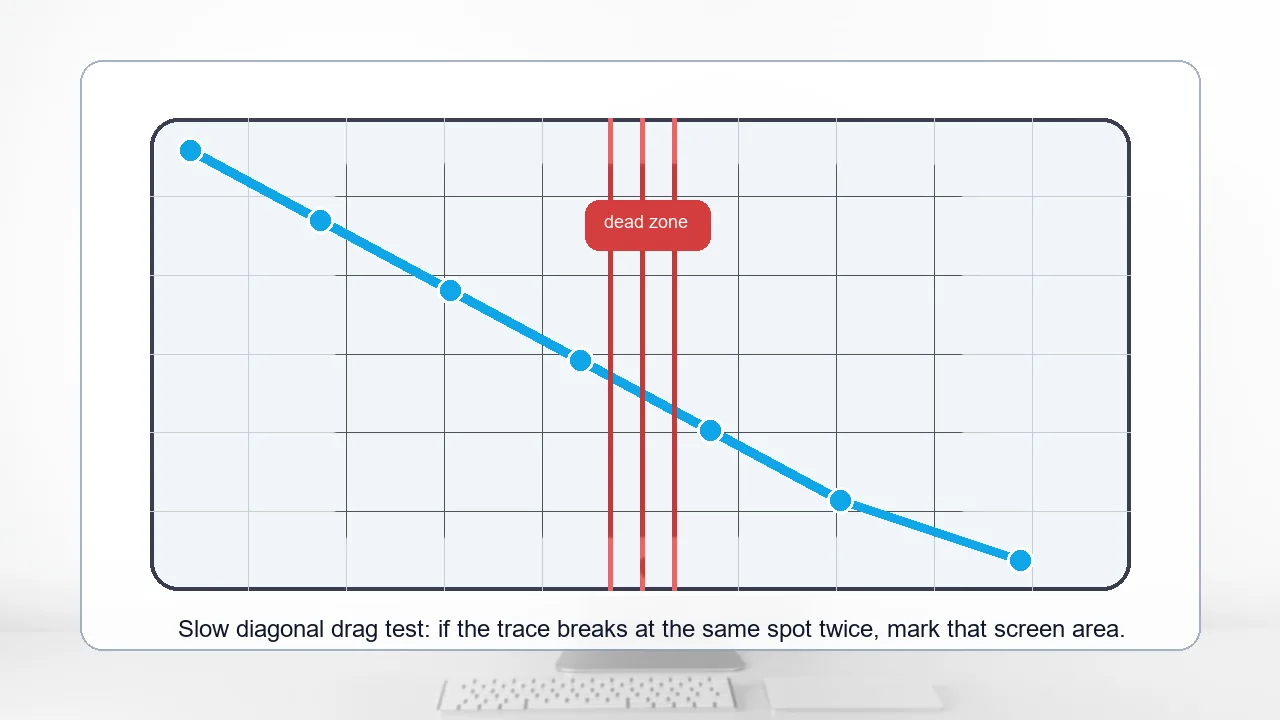
Free OLED and plasma burn-in test. Cycle through full-color, checkerboard, and scrolling patterns fullscreen to spot image retention, dead subpixels, and burn-in ghosts on your display.
Pick a mode and press Fullscreen. Solid colors reveal retention; checkerboard exposes dead subpixels; scroll mode is a pixel-refresher that helps restore freshness on OLED.
Click Fullscreen to start. Use arrow keys (or the Next / Prev buttons) to step through colors. Solid full-screen white or a primary color for 30-60 seconds reveals retention. Press Esc to exit.
Current color
White
Tip: leave the scrolling refresher running overnight to help OLED panels recover from mild short-term image retention. Burn-in that persists after 8 hours of full-screen white is permanent; the refresher will not fix it.
Was this tool helpful?Rate OLED Burn-In Test:5.0(1 rating)Thanks for rating!
OLED Burn-In Test is a free, browser-based OLED and plasma burn-in test.
Cost: Free, no signup
Install: None — runs in the browser
Privacy: Runs locally, no uploads
Platforms: Windows, macOS, Linux, Android, iOS
Time: Under a minute
What Is Burn-In?
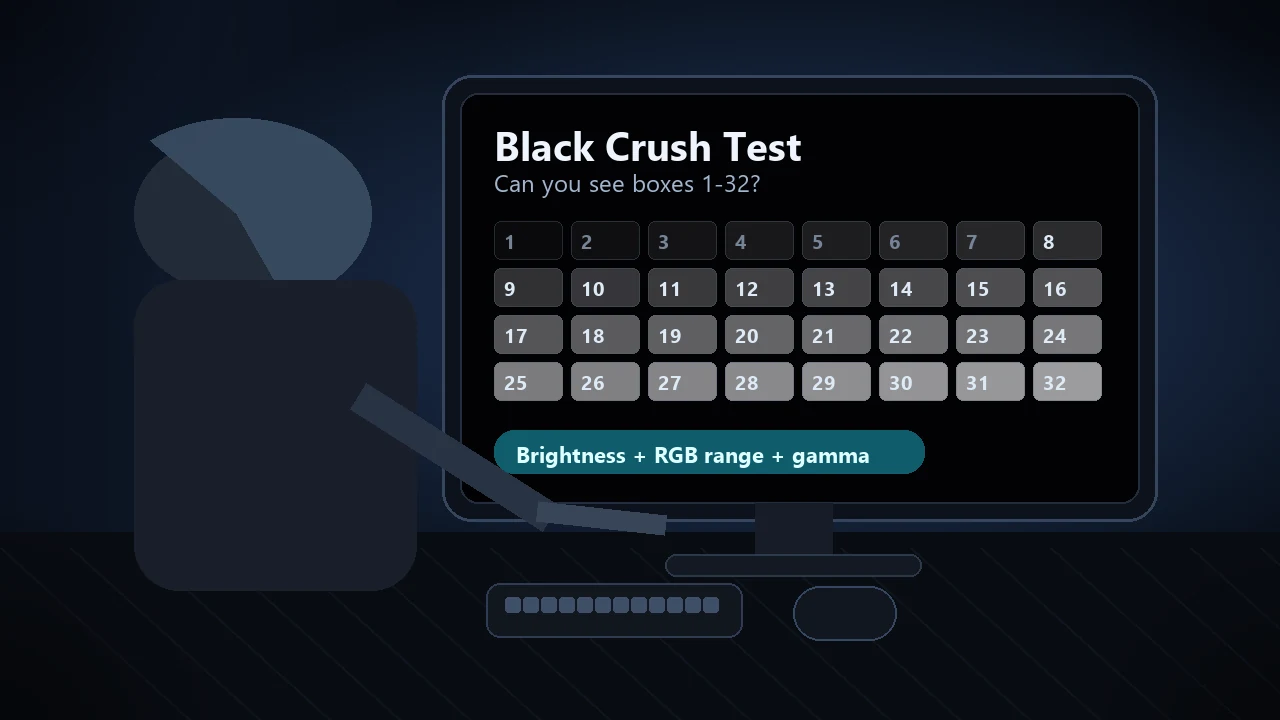
Burn-in is permanent damage to a display where pixels that have shown the same static content for a long time become dimmer or differently colored than surrounding pixels. It's most common on OLED and plasma panels because each pixel is a separate organic light-emitter that degrades with use. Common culprits: taskbars, news-ticker chyrons, game HUDs, TV channel logos. Modern QD-OLED and WOLED panels are far more resistant than early OLED TVs, but not immune. Uneven aging shows first in dark scenes, so after checking for ghosts it is worth running a shadow detail test to see whether your panel's near-black steps are still distinct.
Burn-In vs Image Retention
"Image retention" (IR) is temporary — the ghost fades after a few minutes or an hour of normal use. "Burn-in" is permanent — it never fades. This tool can help you tell them apart: run the full color cycle at fullscreen for 10 minutes. If the ghost disappears, it was IR (no real damage). If it's still there after 30 minutes, it's burn-in. For the full fade-or-stay test, the recovery refresher step, and a clear RMA decision tree, see our guide on OLED burn-in vs image retention and how to recover it.
The Scrolling Refresher
Scroll mode displays a moving vertical bar pattern across the whole screen. For OLED panels with mild short-term retention, leaving this running for 4-8 hours exercises every pixel evenly, which can help the dimmer cells "catch up" and reduce the visible ghost. This is essentially what your OLED TV does in its overnight pixel-refresh cycle — but you can force it on-demand through a browser. It won't fix permanent burn-in.
How To Prevent Burn-In
Lower OLED brightness when displaying static content (desktop use).
Enable pixel shift / orbit features in your TV settings.
Use auto-hide for taskbars / docks during long idle periods.
Vary your content — rotate through different channels, games, or wallpapers.
Let the TV run its automatic pixel-refresh cycle overnight (usually activated by standby mode).
Run the full color cycle at fullscreen for 10-30 minutes. If the ghost fades away, it was temporary image retention. If it remains, it is permanent burn-in.
Does the scrolling refresher actually fix OLED burn-in?
It helps short-term image retention by exercising every pixel evenly. It does not and cannot fix permanent burn-in where subpixel emitters have degraded.
How long should I run the refresher?
Four to eight hours for mild retention. This is similar to what an OLED TV does during its overnight pixel-refresh cycle.
Which content causes OLED burn-in?
Static high-contrast elements displayed for long periods: taskbars, news tickers, game HUDs, channel logos. Varying the content and lowering brightness prevents it.