How The Surround Sound Test Works
The test uses the Web Audio API's ChannelMergerNode to route a short sine tone to one specific output channel at a time. When your browser and OS expose 6 or 8 output channels (audioContext.destination.maxChannelCount), each tone is sent to a discrete channel by index: FL=0, FR=1, Center=2, LFE/Sub=3, Rear L=4, Rear R=5, Side L=6, Side R=7. When the browser reports only stereo output (the default case on most consumer setups), the tool gracefully falls back to stereo panning with front/back volume shaping so you still hear rough positioning and can verify the walk order — just not true multichannel audio.
5.1 vs 7.1 Channel Layouts
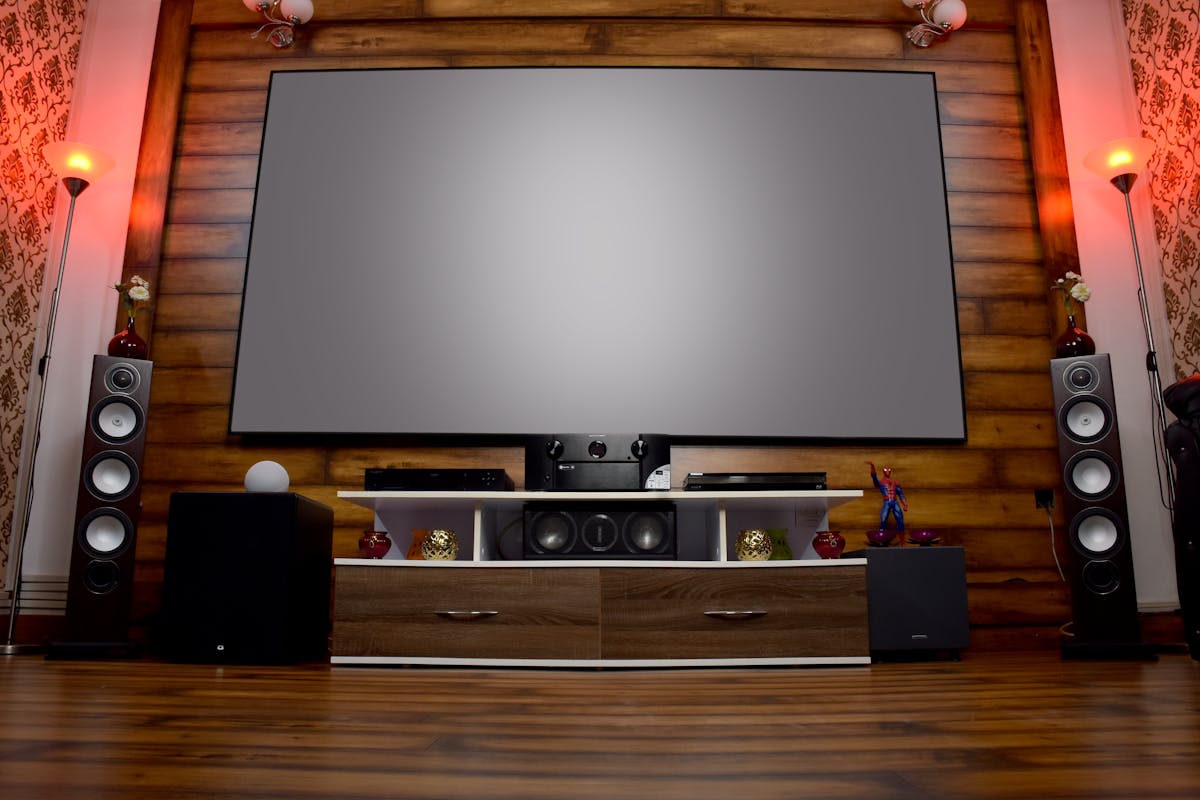
A 5.1 system is front left, front right, center, subwoofer (LFE), and two rears. A 7.1 system adds two side channels between the fronts and rears. The ".1" is the low-frequency effects channel (LFE), usually routed to a subwoofer with a crossover around 80 Hz. The center channel carries most dialog in movies, which is why a muted or miswired center makes everything sound "thin". The side and rear channels handle ambient and panning cues — in a correctly calibrated room, you should not consciously notice them during quiet scenes, only during moments of deliberate spatial effect.
Why Browsers Rarely Deliver True Surround
Most browsers mix everything down to stereo before it hits your audio device, even if the device itself supports 8 channels. This is a safety default — a webpage playing 7.1 audio to someone using stereo headphones would sound broken. To get true multichannel output you typically need a desktop OS (Windows, Linux, or macOS), a receiver or soundcard configured to accept discrete channels, and a browser build that respects channelCountMode: 'explicit' on the destination. Even Chrome on Windows with a 5.1 USB DAC frequently downmixes. The stereo-fallback mode in this test is the honest compromise: you can still verify the order of a walk even if the routing is simulated.
Verifying Your Setup Without This Tool
For a true discrete channel test on Windows, open the Sound control panel, right-click your default playback device, select Configure speakers, pick 5.1 or 7.1, and use the "Test" button. macOS has a similar panel under Audio MIDI Setup. AV receivers usually have a built-in test-tone generator accessed via the setup menu — that's the most reliable way to confirm channel wiring is correct at the receiver, regardless of what the browser can do. Use this web tool as a first check, then verify with the native OS or receiver tone if you spot a miswired channel.
Troubleshooting Guide
If the walk-around shows the wrong speaker answering a channel — for example a rear channel coming out of a front speaker — our step-by-step fix guide explains exactly what to do next: Rear Speakers Playing Through the Front? Test Every Channel and Fix Swapped 5.1/7.1 Audio. It covers swapped cables, Windows and Realtek Speaker Fill settings, AV receiver decode (PCM vs bitstream), content that is not actually 5.1, and when to re-cable versus RMA a speaker.