Free monitor sharpness test online. Check text clarity, color fringing, sub-pixel layout, and pixel-grid moire on your display. Lagom-style sharpness pattern, multi-size text samples, and full-screen mode. Browser-based, no install.
Render Lagom-style 1px pixel-grid patterns, multi-size text samples in three font families, color-fringing blocks, and an RGB sub-pixel ruler to evaluate how sharply your monitor reproduces fine detail. Toggle dark mode and full-screen any pattern to inspect under real viewing conditions — all in the browser, no install.
Lagom-style sharpness patterns
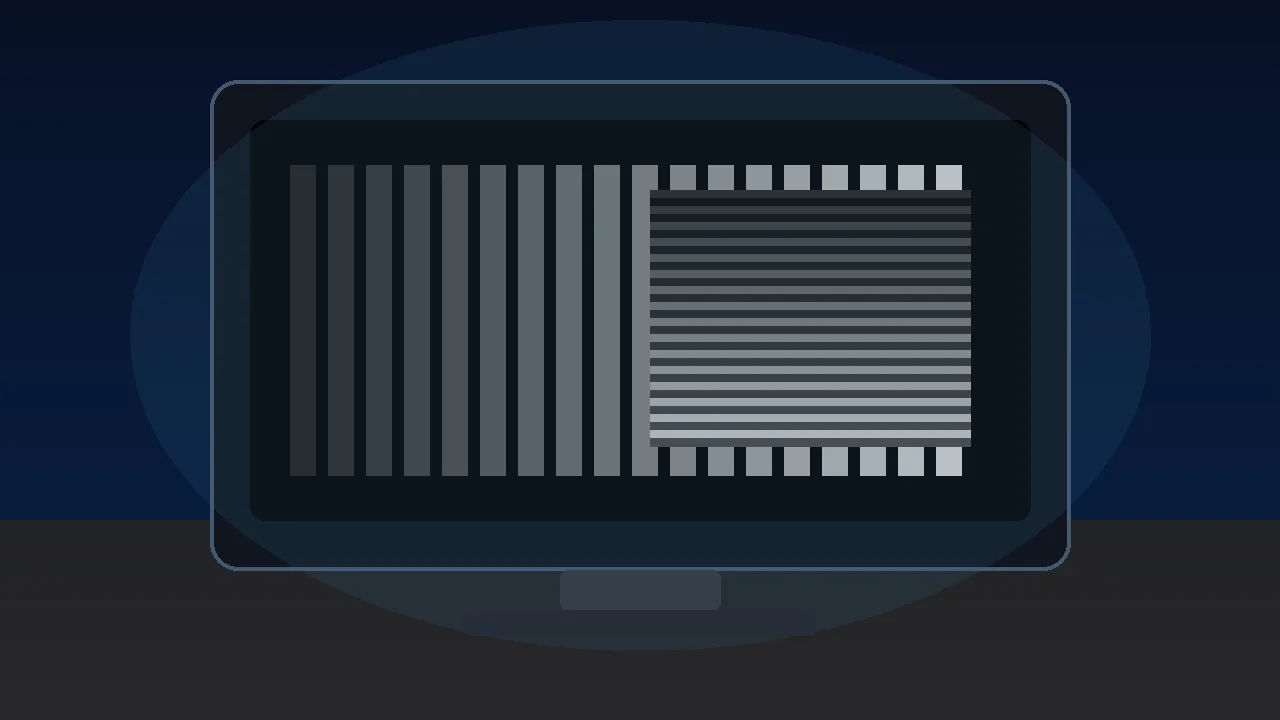
Each block is a 1px alternating black/white grid drawn at the device pixel ratio. On a correctly-scaled monitor with neutral sharpness, every block should look like a uniform mid-grey at arm's length. Visible banding, moire, or shimmer means OS scaling, monitor over-sharpening, or a non-native resolution is interfering with pixel-perfect rendering.
Text clarity at 8 sizes × 3 fonts
Read each block. Small text should remain crisp, not fuzzy. The same paragraph is rendered in serif, sans, and monospace at 12-64 px so you can compare hinting, stem thickness, and grayscale anti-aliasing.
Color fringing detection
Look at the edges of each character. If you see thin red, green, or blue halos along letter strokes, that is chromatic aberration from sub-pixel anti-aliasing on a non-RGB-stripe panel (e.g. RWBG, BGR, OLED PenTile). Black-on-white and white-on-black often render with different sub-pixel hinting.
16px black on white
The quick brown fox jumps over the lazy dog. 0123456789
Sharpness
16px white on black
The quick brown fox jumps over the lazy dog. 0123456789
Sharpness
Aa Bb 0123
Aa Bb 0123
Sub-pixel layout ruler
A 1px wide repeating pattern of pure red, green, blue, and black columns. Lean in close (or use a phone camera macro). On a standard RGB-stripe LCD you should see a clean R-G-B-K stripe; on a BGR panel the order reverses; OLEDs with PenTile arrangement will look mottled. This tells you the pixel layout your monitor uses for sub-pixel anti-aliasing.
Denser RGB+black:
Solid R/G/B reference (helps identify a stuck pixel within a column):
Was this tool helpful?Rate Monitor Sharpness Test:5.0(2 ratings)Thanks for rating!
Monitor Sharpness Test is a free, browser-based screen testing tool that runs the full check instantly in your web browser.
Cost: Free, no signup
Install: None — runs in the browser
Privacy: Runs locally, no uploads
Platforms: Windows, macOS, Linux, Android, iOS
Time: Under a minute
How The Monitor Sharpness Test Works
The pixel-grid panel draws a 1 px alternating black-and-white checker on a HTML <canvas> at the device pixel ratio (window.devicePixelRatio), so every drawn pixel maps to exactly one physical pixel on a properly-scaled monitor. The image-rendering CSS property is forced to pixelated / crisp-edges so the browser cannot smooth the grid before display. If your monitor's sharpness control is at neutral, your OS scaling is a round value, and your resolution is native, all six patterns should blend into a uniform mid-grey at arm's length. Visible banding, moire, or shimmer means one of those three settings is interfering with pixel-perfect rendering.
What "Sharp" Really Means On A Monitor
Sharpness on a monitor is the fidelity with which thin, high-contrast features are reproduced. It is determined by three things: panel pixel density (PPI), sub-pixel layout (RGB stripe vs BGR vs PenTile), and any post-processing the monitor's scaler applies (the "Sharpness" OSD control, edge enhancement, or interpolation when running below native resolution). At a typical 60-70 cm desk viewing distance, 90-110 PPI is acceptable and 140 PPI+ is "retina-class". Below 80 PPI you can see individual pixels. Above 200 PPI, sub-pixel anti-aliasing matters less because individual pixels disappear at normal viewing distance.
Color Fringing And Sub-Pixel Layout
Modern font renderers (DirectWrite on Windows, CoreText on macOS, FreeType on Linux) use sub-pixel anti-aliasing tuned for an RGB-stripe LCD. On a BGR panel, the fringing will be reversed and noticeable; on an OLED with a PenTile arrangement (some Samsung phones, some QD-OLEDs), the sub-pixels do not line up in vertical stripes at all and you will see slight color halos around dark-on-light text regardless. The sub-pixel ruler in this tool shows you which layout your panel uses: read the stripe order at very close range and compare against R-G-B (standard LCD), B-G-R (some VA panels), or a triangular pattern (PenTile OLED). If the order does not match what your OS expects, re-run ClearType (Windows) or disable sub-pixel rendering (macOS >= Mojave does this automatically on Retina displays).
Why Text Looks Different Across Browsers
Each browser renders text through a slightly different stack. Chrome on Windows uses DirectWrite by default but falls back to GDI on older versions. Firefox uses DirectWrite with its own gamma correction. Safari on macOS uses CoreText with its grayscale anti-aliasing (no sub-pixel). The same 14 px paragraph in this test can therefore look thicker in Firefox, slightly contrastier in Chrome, and softer in Safari. None of those are wrong - they are different anti-aliasing philosophies. If your text looks fuzzy in every browser, the cause is upstream: wrong OS scaling, non-native resolution, or a monitor sharpness setting that is not neutral. For a full walkthrough of all five, see our guide on why a monitor looks blurry - scaling, resolution and OLED text fringing, which pairs each cause with the patterns above so you can verify the fix by eye.
Why does the 1px pixel grid look like wavy bands instead of solid grey?
You are not running at the panel native resolution, your OS scaling is set to a fractional value (125% or 150%), or your browser zoom is not 100%. Each of those breaks the 1:1 mapping between drawn pixels and physical pixels, which is why the grid moires. Set browser zoom to 100% (Ctrl+0), use a round OS scaling value (100% or 200%), and confirm you are at native resolution.
What is the correct "Sharpness" setting on my monitor?
Neutral. Most monitors have a 0-100 sharpness slider where 0 or 5 is the neutral pass-through value and anything higher applies edge enhancement that creates halos around text. Use this test to find the value where the 1px checker patterns look uniform mid-grey at arm length and text edges have no halo - that is neutral.
Why do I see red and blue halos around text on my OLED monitor?
OLEDs often use a non-standard sub-pixel layout (PenTile, RWBG, or QD-OLED triangular) instead of the RGB stripe LCDs use. Sub-pixel font anti-aliasing (ClearType on Windows, sub-pixel rendering on Linux) is tuned for RGB stripe and produces visible color fringing on these panels. The fix is to disable sub-pixel rendering and use grayscale anti-aliasing only - macOS does this automatically on Retina, Windows requires re-tuning ClearType.
Does this replace the Lagom LCD sharpness test?
It serves the same purpose. Lagom is a static image with a single sharpness pattern; this tool draws the patterns dynamically at your device pixel ratio so they remain pixel-perfect on HiDPI displays where a static image would be upscaled. It also adds multi-size text samples, color fringing blocks, and a sub-pixel ruler that the original Lagom page does not include.